Navy Classic
Analog Dress Watch
A classic analog dress watch for your Garmin, with the data you actually use.
Free in the Connect IQ Store. Install it from the Connect IQ app on your phone.
Open on your phone
Scan the code with your phone to open Navy Classic in the Connect IQ Store. You buy and install faces in the Connect IQ app on your phone.
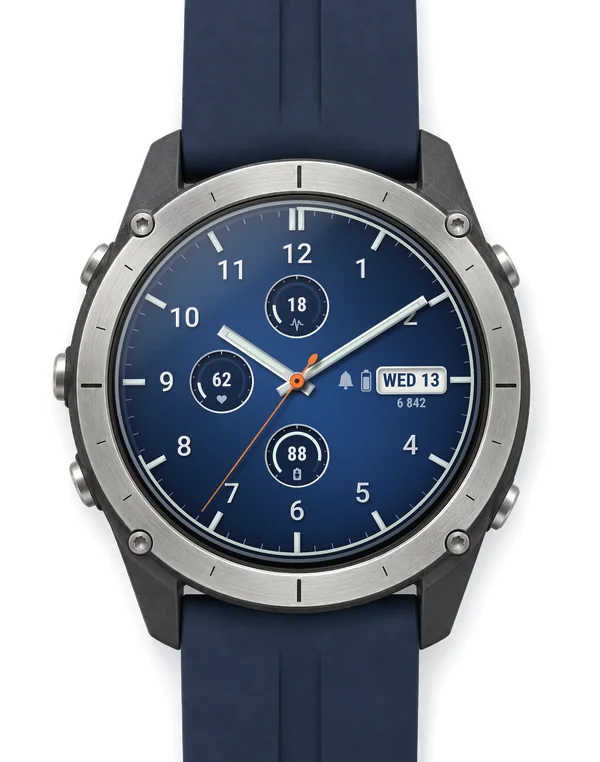
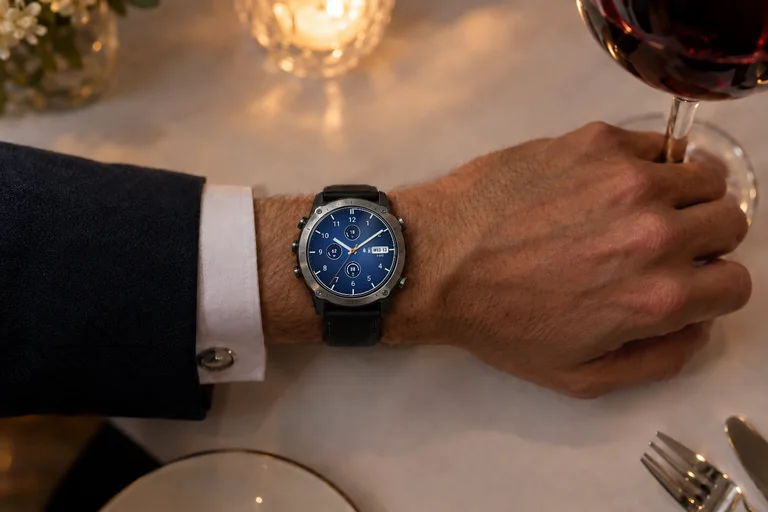
Look closer
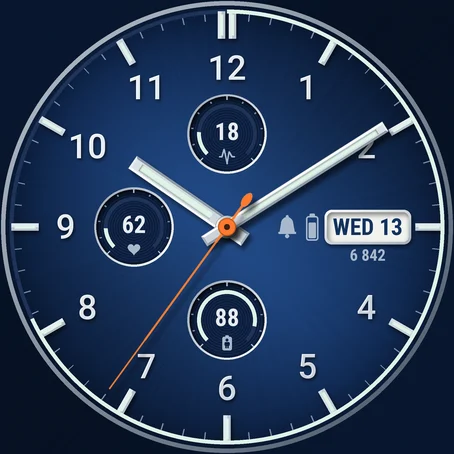
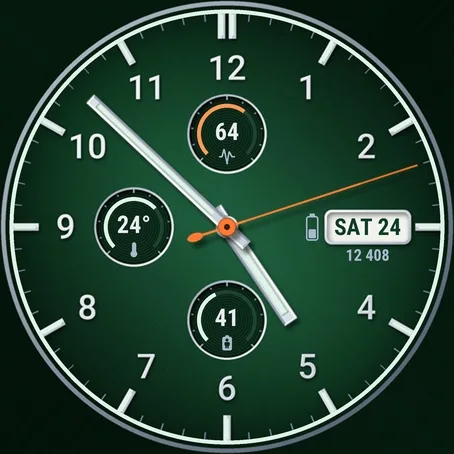
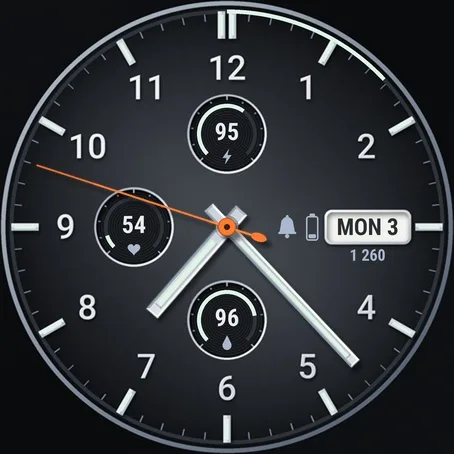
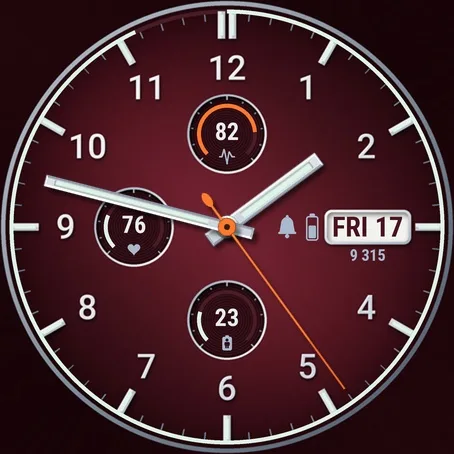
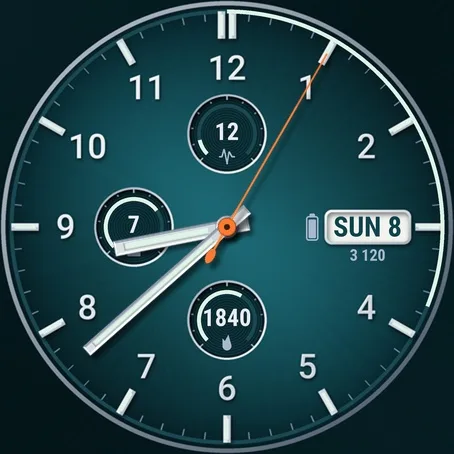
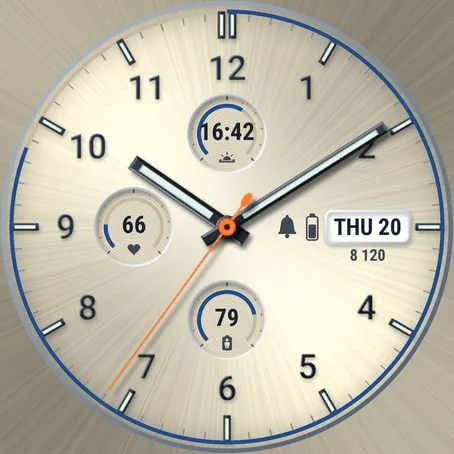

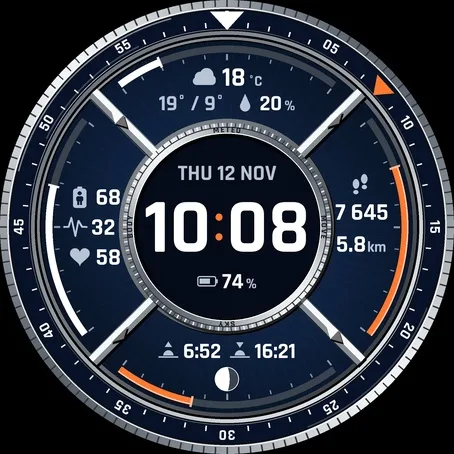
Screenshots from the Garmin simulator.
How to use
Install
- Install the Connect IQ app on your phone and sign in with your Garmin account.
- Search "Navy Classic" in the Connect IQ app, open the face and tap Install (paid faces show the price first).
- Sync the watch in Garmin Connect, then pick the face on the watch in the watch face menu.
How to set it up
- On the watch open the watch face menu (hold MENU, or long-press the screen on touch watches), select Navy Classic and its settings. Change colour, subdials, seconds hand and more without your phone.
- In the Connect IQ app on your phone open the watch face, tap Settings, save. If the settings don't sync, restart watch and phone, then sync in Garmin Connect.
At a glance
What it does
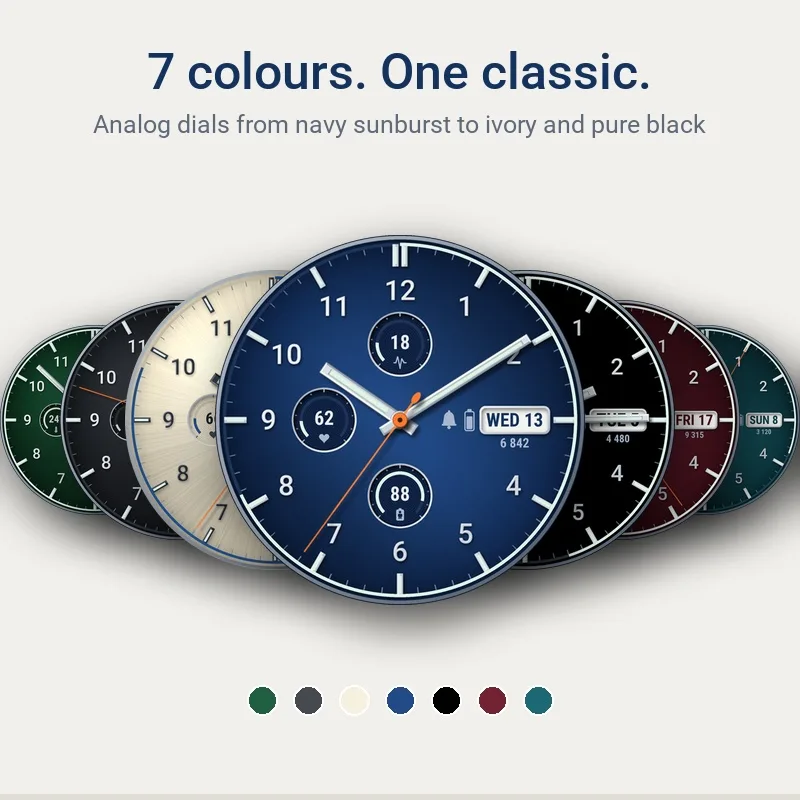
- Dial in 7 colours: navy, graphite, green, burgundy and teal sunburst, light ivory with dark hands and numerals, and pure black for AMOLED battery life
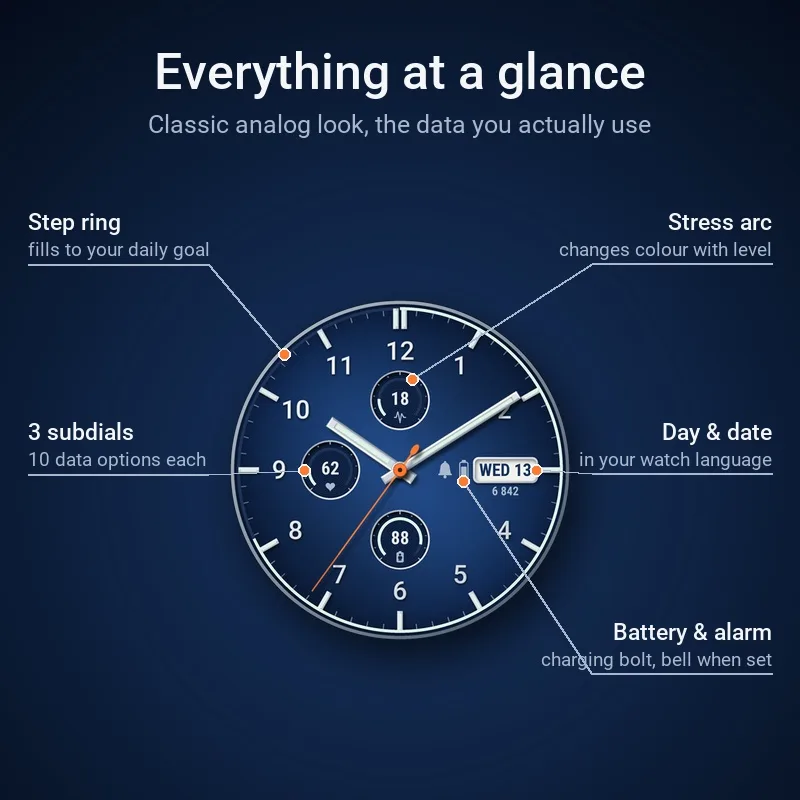
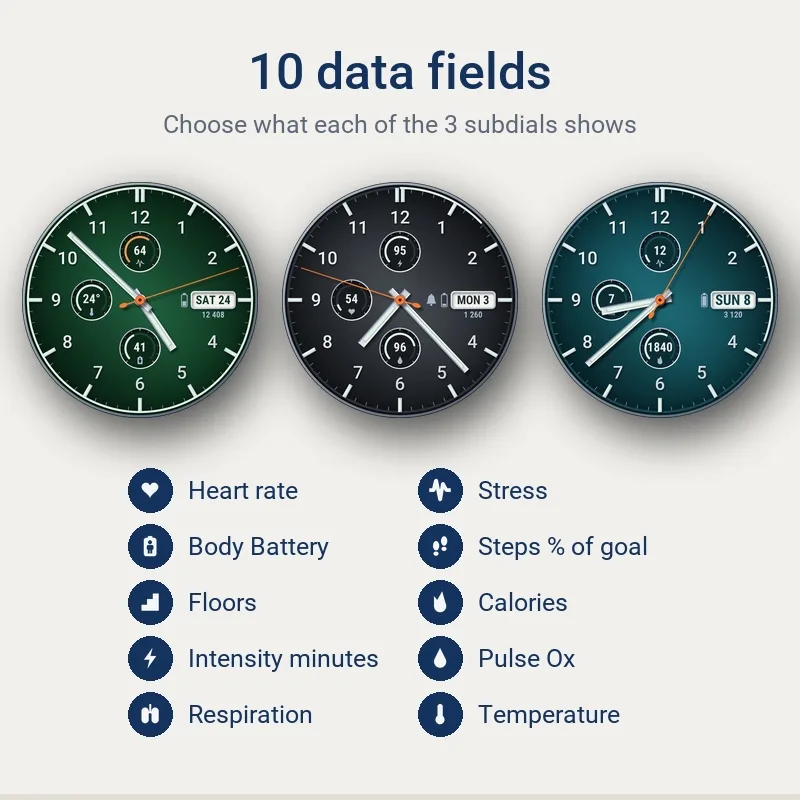
- Three subdials, each can show one of 15 values or stay empty: heart rate, stress, Body Battery, steps, floors, calories, intensity minutes, Pulse Ox, respiration, weather temperature, sunrise/sunset, notifications, recovery time, distance or watch battery
- Touch and hold a subdial, the date or the battery to open the matching Garmin widget (touchscreen watches)
- Step progress ring around the dial, filling up to your daily goal (ring with count, ring only, or hidden)
- Date window at 3 o'clock: day and date, date and month, or week number
- Battery as icon, percent or days left, optional status icons for phone connection, Do Not Disturb and notifications, bell icon when an alarm is set
- Seconds hand can be turned off
- Stress arc changes colour with the stress level
- Day and month names, units and 12/24 h follow your watch settings
- Battery-friendly always-on mode on AMOLED in three styles (hands, numerals and date / hands and date / hands only), clean flat version for MIP displays (fenix 6, fenix 7, fenix 8 Solar, Forerunner 255/955, Enduro)
- On fenix 8 and newer, colour and subdials are set in Garmin's native watch face editor
- No data leaves your watch
Runs on my watch?
Runs on 82 Garmin watches.
- Approach S50 AMOLED
- Approach S70 42mm AMOLED
- Approach S70 47mm AMOLED
- Approach S72 43mm AMOLED
- Approach S72 47mm AMOLED
- D2 Air X10 AMOLED
- D2 Mach 1 AMOLED
- D2 Mach 2 AMOLED
- D2 Mach 2 Pro AMOLED
- Descent G2 AMOLED
- Descent Mk3 43mm / Mk3i 43mm AMOLED
- Descent Mk3i 51mm AMOLED
- Enduro MIP
- Enduro 3 MIP
- Enduro 4 MIP
- epix (Gen 2) / quatix 7 Sapphire AMOLED
- epix Pro (Gen 2) 42mm AMOLED
- epix Pro (Gen 2) 47mm / quatix 7 Pro AMOLED
- epix Pro (Gen 2) 51mm / D2 Mach 1 Pro / tactix 7 - AMOLED Edition AMOLED
- fēnix 6 / 6 Solar / 6 Dual Power MIP
- fēnix 6 Pro / 6 Sapphire / 6 Pro Solar / 6 Pro Dual Power / quatix 6 MIP
- fēnix 6S / 6S Solar / 6S Dual Power MIP
- fēnix 6S Pro / 6S Sapphire / 6S Pro Solar / 6S Pro Dual Power MIP
- fēnix 6X Pro / 6X Sapphire / 6X Pro Solar / tactix Delta Sapphire / Delta Solar / Delta Solar - Ballistics Edition / quatix 6X / 6X Solar / 6X Dual Power MIP
- fēnix 7 / quatix 7 MIP
- fēnix 7 Pro MIP
- fēnix 7 Pro - Solar Edition (no Wi-Fi) MIP
- fēnix 7S MIP
- fēnix 7S Pro MIP
- fēnix 7X / tactix 7 / quatix 7X Solar / Enduro 2 MIP
- fēnix 7X Pro MIP
- fēnix 7X Pro - Solar Edition (no Wi-Fi) MIP
- fēnix 8 43mm AMOLED
- fēnix 8 47mm / 51mm / tactix 8 47mm / 51mm / quatix 8 47mm / 51mm AMOLED
- fēnix 8 Pro 47mm / 51mm / MicroLED / quatix 8 Pro 47mm / 51mm AMOLED
- fēnix 8 Solar 47mm MIP
- fēnix 8 Solar 51mm / tactix 8 Solar 51mm MIP
- fēnix 9 43mm AMOLED
- fēnix 9 47mm / 51mm AMOLED
- fēnix 9 Pro 43mm AMOLED
- fēnix 9 Pro 47mm AMOLED
- fēnix 9 Pro 51mm AMOLED
- fēnix 9 Pro Solar 47mm MIP
- fēnix 9 Pro Solar 51mm MIP
- fēnix E AMOLED
- Forerunner 165 AMOLED
- Forerunner 165 Music AMOLED
- Forerunner 170 AMOLED
- Forerunner 170 Music AMOLED
- Forerunner 255 MIP
- Forerunner 255 Music MIP
- Forerunner 255s MIP
- Forerunner 255s Music MIP
- Forerunner 265 AMOLED
- Forerunner 265s AMOLED
- Forerunner 570 42mm AMOLED
- Forerunner 570 47mm AMOLED
- Forerunner 70 AMOLED
- Forerunner 955 / Solar MIP
- Forerunner 965 AMOLED
- Forerunner 970 AMOLED
- Instinct 3 AMOLED 45mm AMOLED
- Instinct 3 AMOLED 50mm AMOLED
- MARQ (Gen 2) Athlete / Adventurer / Captain / Golfer / Carbon Edition / Commander - Carbon Edition AMOLED
- MARQ (Gen 2) Aviator AMOLED
- MARQ Adventurer MIP
- MARQ Athlete MIP
- MARQ Aviator MIP
- MARQ Captain / MARQ Captain: American Magic Edition MIP
- MARQ Commander MIP
- MARQ Driver MIP
- MARQ Expedition MIP
- MARQ Golfer MIP
- Venu 2 AMOLED
- Venu 2 Plus AMOLED
- Venu 2S AMOLED
- Venu 3 AMOLED
- Venu 3S AMOLED
- Venu 4 41mm AMOLED
- Venu 4 45mm / D2 Air X15 AMOLED
- vívoactive 5 AMOLED
- vívoactive 6 AMOLED
Not in the list? Then this face does not run on your watch yet.
Questions
Why is the temperature in °F or the time in 12 h?
The face follows your watch units and time format in the watch system settings.
No weather, temperature or sunrise?
Weather and location come from your phone. Make sure Garmin Connect has location access and the watch is connected; it can take a few minutes after a sync.
Why no seconds hand in always-on?
Garmin updates always-on once a minute to save battery, so no face can show live seconds there.
Can it show the alarm time?
Garmin gives watch faces only "alarm set / not set", so the bell icon shows that an alarm exists.
Colours look different on my fenix 7 / Forerunner 255?
MIP displays show 64 colours, so the dial is flat there by design. Screenshots are from an AMOLED watch.
How do I uninstall?
Connect IQ app / My Device / Watch Faces / select the face / Uninstall (pick another face on the watch first).
What's new
- Version 1.6.3 Fix: sunrise and sunset showed -- instead of the time. They now come straight from the watch (Connect IQ 4.2 and newer).
- Version 1.6.1 Fix: the Data section of Garmin's native watch face editor (fenix 8 and newer) could crash the watch face. An empty subdial can now be switched back on in the editor, and the editor responds faster.
- Version 1.6.0 Two new dial colours: light ivory with dark hands and numerals, and pure black for AMOLED battery life. Native Garmin watch face editor on fenix 8 and newer (colour and subdials). Any subdial can be left empty, the step ring can be shown without the count or hidden. Always-on in three styles: hands, numerals and date / hands and date / hands only. Status icons are now off by default, turn them on in settings.
More from Navy
Something not working? See help or write to me